

Get Started WithSeller Hub
Guía de configuración del Centro de vendedores: desde el registro hasta tu primer envío
¿Qué es Seller Hub?
Seller Hub es la plataforma gratuita de gestión de envíos de SendNow by Asendia, diseñada para vendedores online y pymes. Te permite conectar tus canales de venta, importar pedidos automáticamente, gestionar paquetes de forma masiva y reservar envíos nacionales e internacionales (donde esté disponible), todo desde un mismo lugar.
Para disfrutar de una experiencia de envío optimizada, animamos a nuestros clientes a utilizar Seller Hub, que ayuda a agilizar las operaciones y a mejorar la automatización y la generación de informes.

Ventajas principales
✅ Uso gratuito - sin cuotas de suscripción; solo pagas las etiquetas de envío que solicites. | ✅ Multicanal - conecta Amazon, eBay, Etsy, Temu, Shopify y WooCommerce, todo desde un único panel de control. |
✅ Importación automática de pedidos - los pedidos de tus plataformas vinculadas se importan automáticamente cuando se realiza una venta. | ✅ Alcance global - envíos a más de 150 destinos internacionales con las competitivas tarifas de Asendia. |
✅ Pago flexible - paga con tarjeta o recarga tu saldo para realizar reservas rápidas con un solo clic. | ✅ Seguimiento completo - supervisa cada envío en tiempo real, desde la entrega hasta la entrega final. |
✅ Pedidos en formato CSV y manuales - sube una hoja de cálculo o introduce los pedidos manualmente sin necesidad de integrarse con un mercado online. |
Registering on SendNow by Asendia
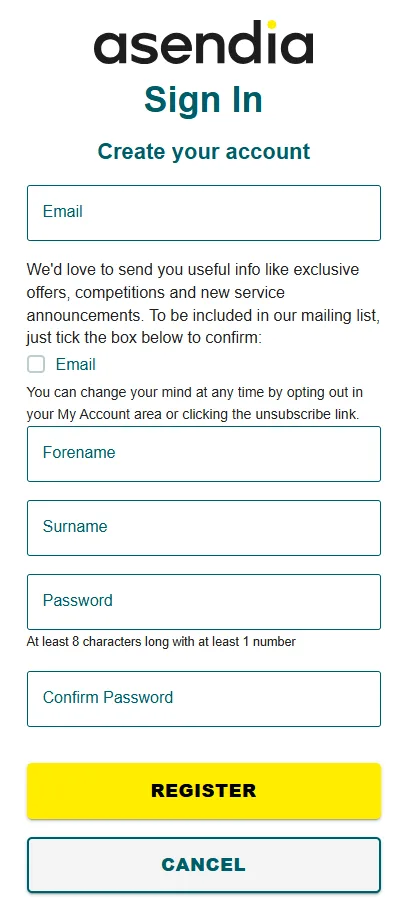
Para utilizar Seller Hub, necesitarás tener una cuenta registrada. Haz clic en 'Iniciar sesión' en la parte superior de la página. Una vez que estés en la página de inicio de sesión, haz clic en 'Crear una cuenta' o haz clic aquí para ir directamente a la página de registro.
Linking An Account

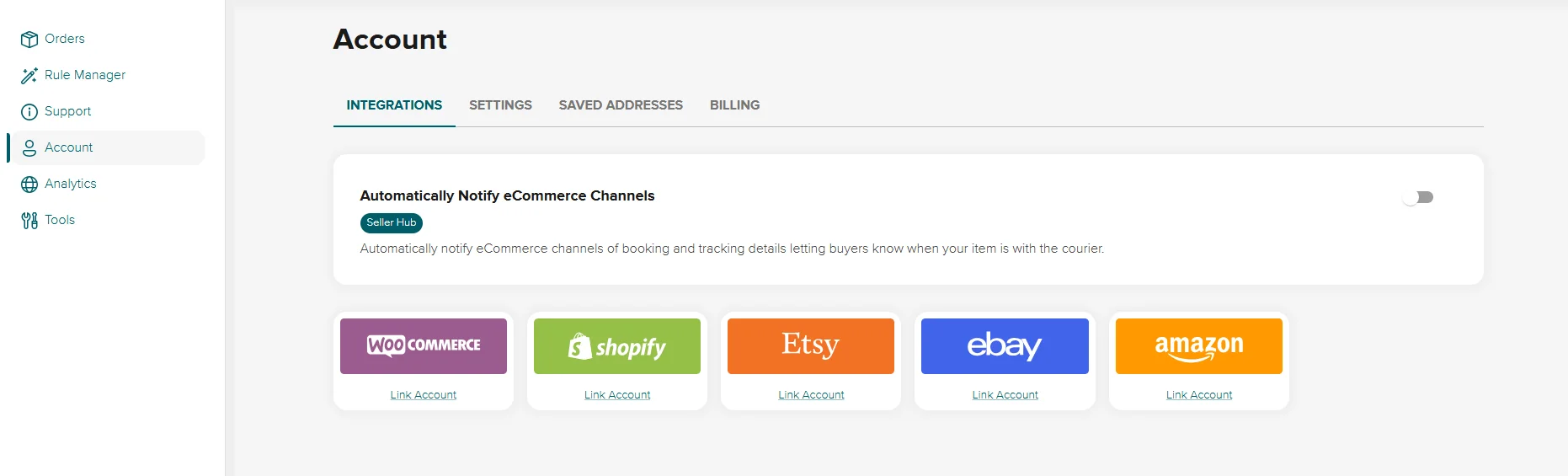
Haz clic en 'Cuenta' en el menú de la izquierda y, a continuación, haz clic en 'Vincular cuenta' en el mercado o la plataforma que desees integrar. Sigue las instrucciones detalladas de la página siguiente para completar la integración.
Nota: Si deseas subir un archivo CSV o añadir un pedido manualmente, puedes saltarte este paso.
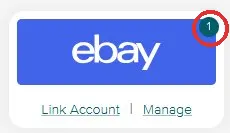
Una vez que hayas vinculado tu cuenta del marketplace, aparecerá un mensaje indicando que la operación se ha realizado correctamente en la parte superior de la página y también lo verás reflejado en tu panel de control.

How Your Orders and Items Are Imported
Tus pedidos se importan automáticamente desde tu cuenta del mercado o la plataforma y aparecerán en tu 'Seller Hub'. Para ver tus artículos, asegúrate de haber iniciado sesión y, a continuación, ve a 'Seller Hub' y haz clic en 'Pedidos'. También puedes hacer clic aquí.
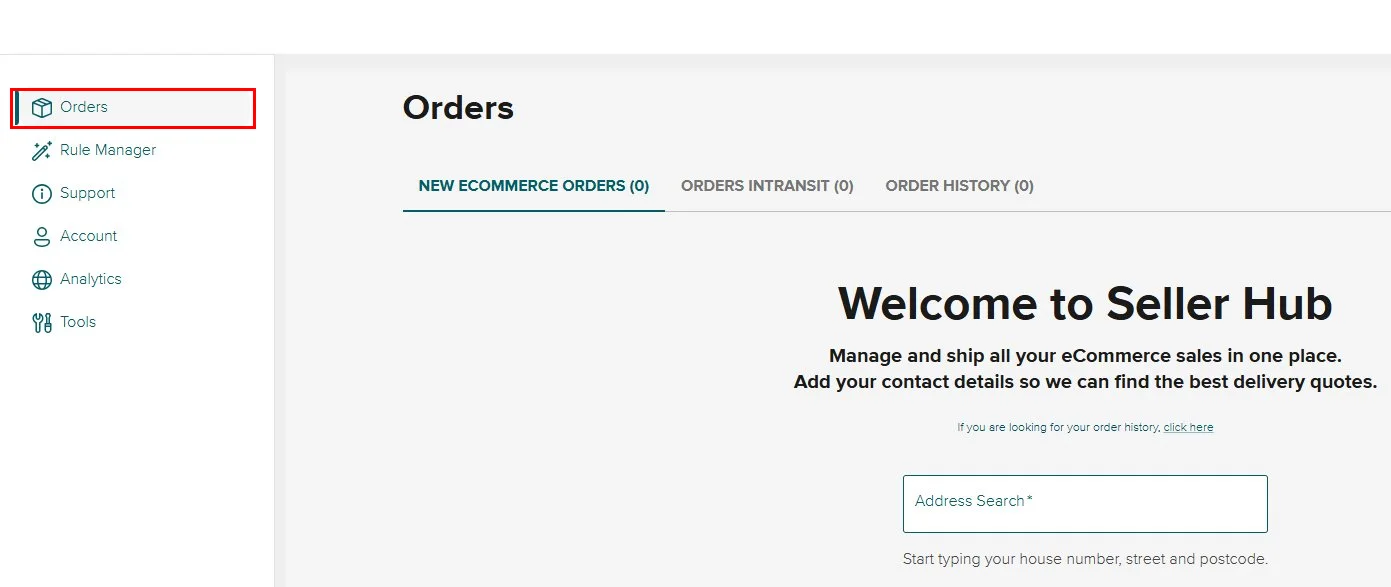
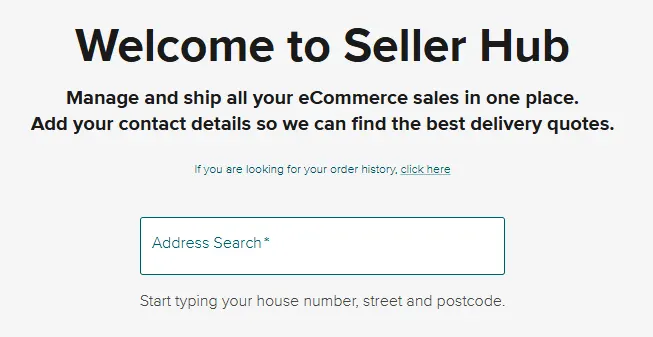
La primera vez que se importen tus artículos a Seller Hub, deberás añadir algunos datos, como tu dirección (obligatorio) y tu número de teléfono (opcional).
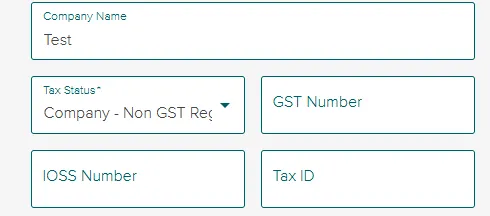
Si añades el nombre de la empresa (opcional), también te pediremos datos sobre tu situación fiscal (obligatorio), tu número de GST (opcional), tu número de IOSS (opcional) y tu NIF (opcional).
How to Manage Your Items
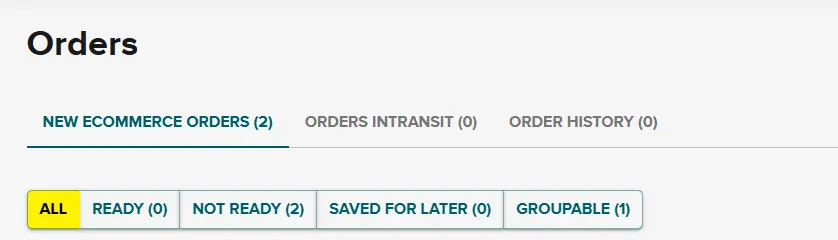
Tus artículos y pedidos aparecerán en la sección 'Nuevos pedidos de comercio electrónico' de tu panel de control.

Puedes ver tus pedidos por estado
Todos: ver todos los artículos que se han importado.
Listos: ver los artículos que están listos para enviarse; no es necesario realizar ninguna acción.
No listos: artículos que se han importado y que requieren atención; por ejemplo, un error en la dirección o la necesidad de seleccionar un servicio.
Guardados para más tarde: artículos que se han guardado y que ahora quieres enviar.
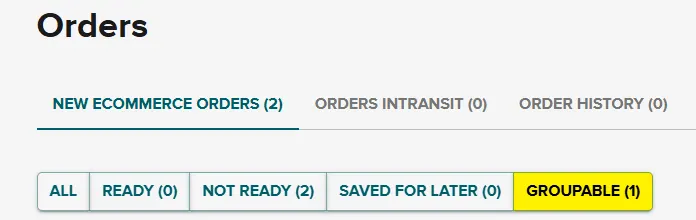
Pedidos agrupados: los artículos que tienen la misma dirección se pueden enviar juntos en un solo paquete.
Tus pedidos se importarán con el contenido del paquete, el peso, las dimensiones y el valor del contenido ya rellenados. También se importarán los datos de contacto del destinatario y la dirección de entrega.
En los siguientes apartados, explicaremos cómo modificar el peso y las dimensiones del paquete, cómo elegir un servicio y cómo modificar las direcciones de entrega.
Editing the Parcel’s Weight and Dimensions
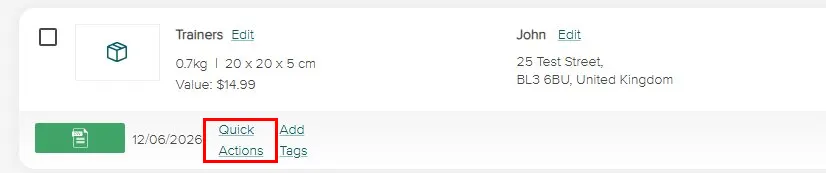
Haz clic en el enlace 'Acciones rápidas' que aparece debajo de los detalles del artículo.
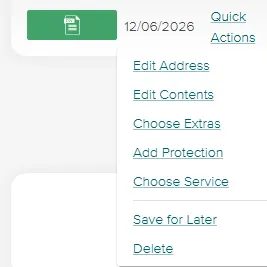
A continuación, selecciona 'Editar contenido'.
La ventana emergente te permite elegir un peso de entre los valores preestablecidos o introducir un peso personalizado.
Si es necesario, también puedes modificar las dimensiones de tu paquete.
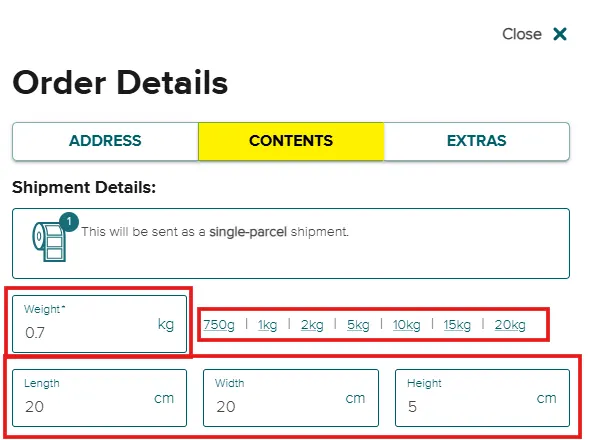
Para obtener un presupuesto lo más preciso posible, siempre recomendamos a nuestros clientes que indiquen las dimensiones completas. Declarar un peso y/o unas dimensiones inferiores a las reales puede dar lugar a plazos de entrega más largos y/o a recargos adicionales.
Choosing a Service
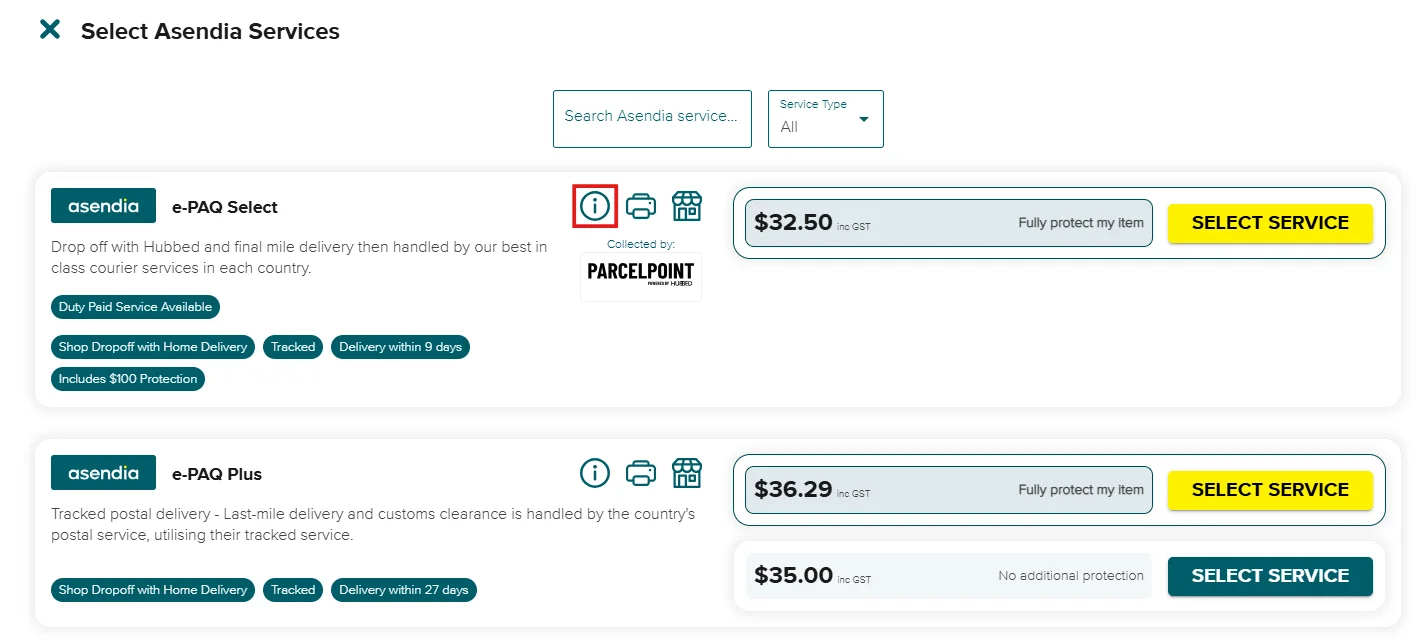
Para seleccionar un servicio, haz clic en el enlace 'Elegir servicio'. Aparecerá una ventana emergente con todos los servicios disponibles según los criterios especificados en los datos facilitados.

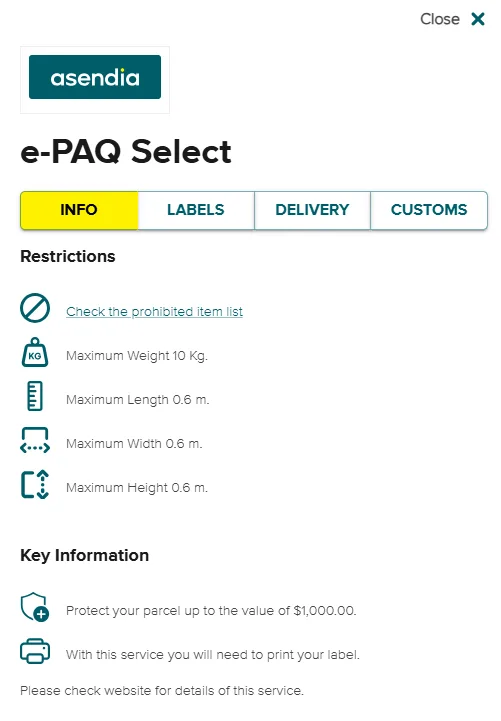
Antes de elegir cualquier servicio, puedes obtener más información, como las características principales y las restricciones, haciendo clic en los iconos de información.
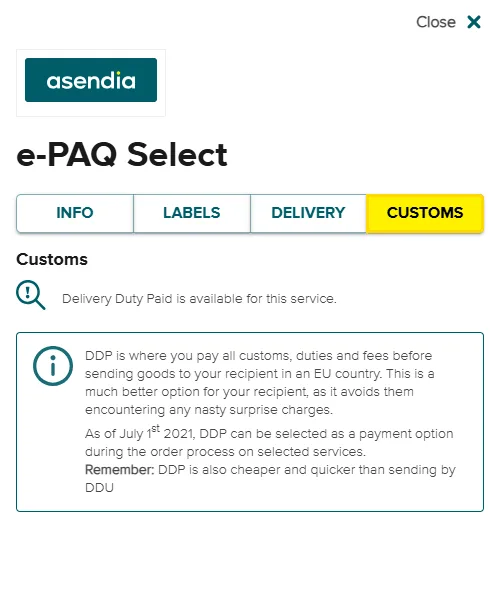
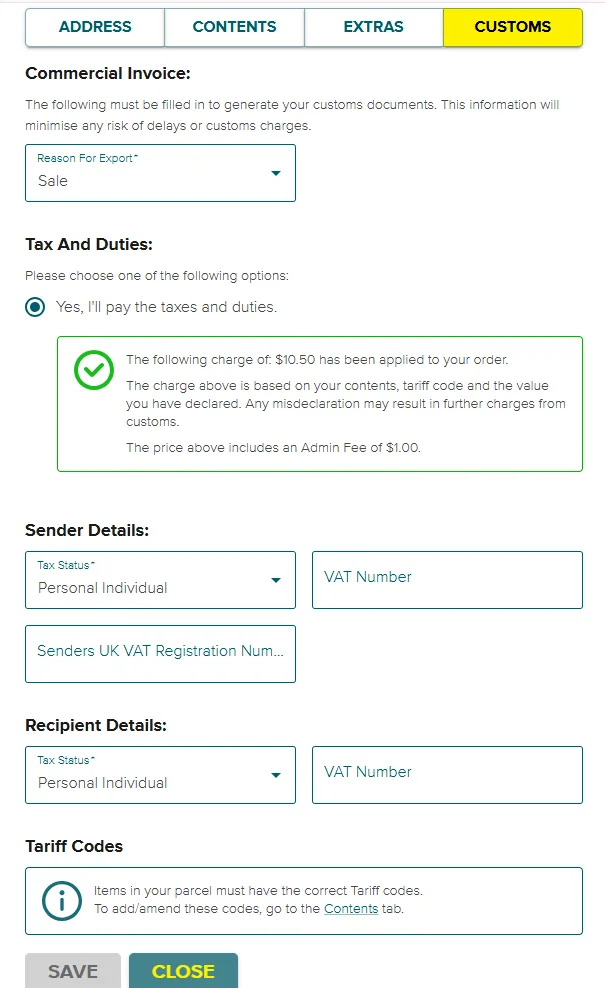
Dependiendo del servicio seleccionado, es posible que también tengas que 'Ver opciones de aranceles' e introducir los datos aduaneros.
Editing the Delivery Address
Para modificar la dirección de entrega:
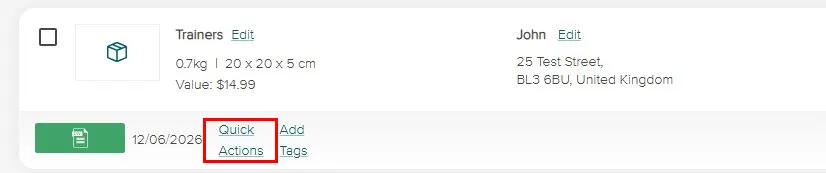
Haz clic en el enlace 'Acciones rápidas' que aparece debajo de los detalles del artículo.
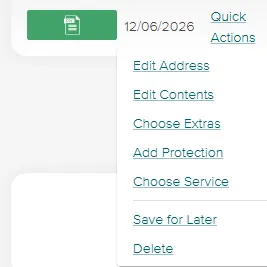
A continuación, selecciona 'Editar dirección'.
La ventana emergente te permite seleccionar la opción de modificar la dirección y los datos de contacto.
Save Items for Later and Deleting Items
Para posponer el envío de un artículo, haz clic en la marca de verificación verde y selecciona 'Guardar para más tarde'.
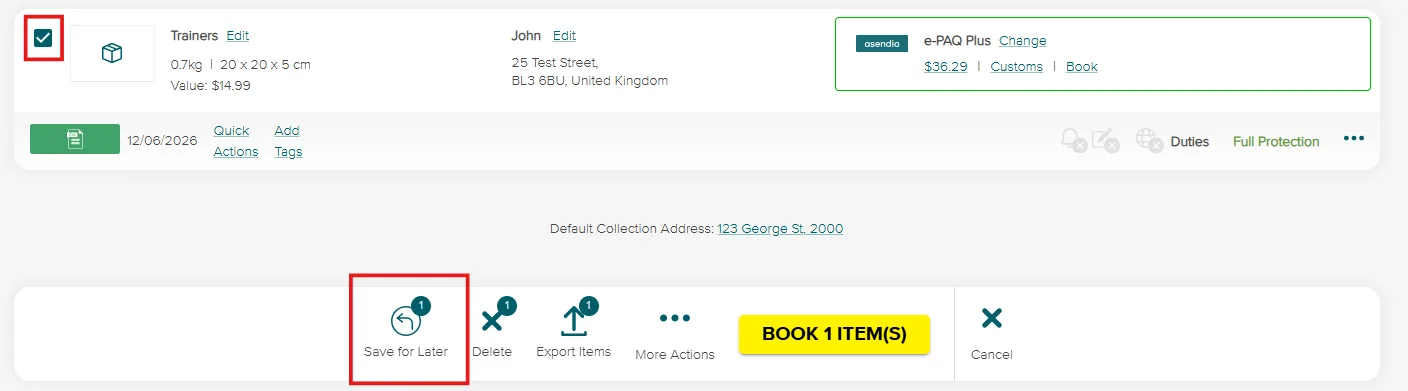
Si guardas todo este elemento para más tarde, el bloque completo aparecerá en gris y permanecerá así hasta que hagas clic en 'Incluir' o en 'Incluir y seleccionar'.

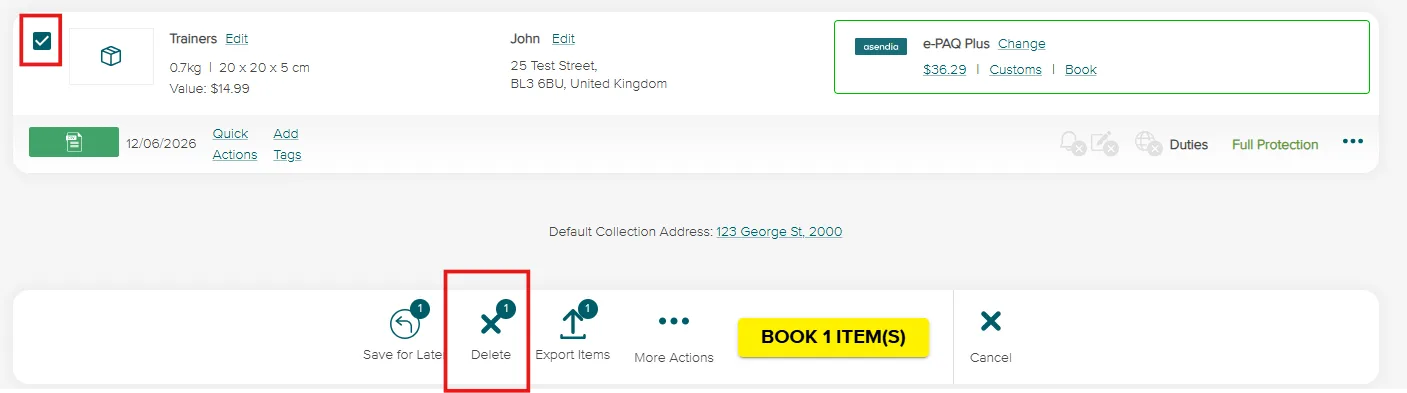
Para eliminar un artículo y los pedidos correspondientes, haz clic en la marca de verificación verde y selecciona 'Eliminar artículo'. De este modo, se eliminará ese artículo y todos los pedidos que se le hayan asignado.
Grouping Items
Si algunos de tus artículos se van a enviar a la misma dirección, podrás agruparlos en tantos paquetes como desees. Solo tienes que ir a la pestaña 'Agrupables'.
Selecciona los artículos que quieras enviar en el mismo paquete y haz clic en 'Agrupar x artículos'.
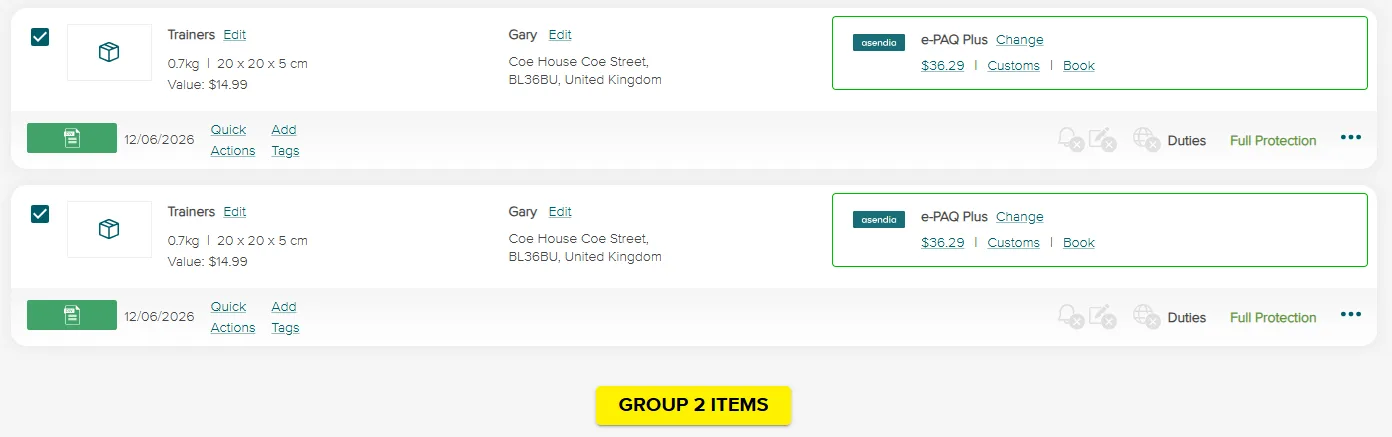
A continuación, puedes ajustar el peso y las dimensiones del paquete combinado.
Preparing Your Order
Una vez que hayas gestionado tus artículos, ya puedes empezar a preparar tu primer pedido. Asegúrate de haber seleccionado los servicios adecuados para cada uno de tus artículos y de que cuenten con el nivel adecuado de protección para los paquetes.
Adding Parcel Protection
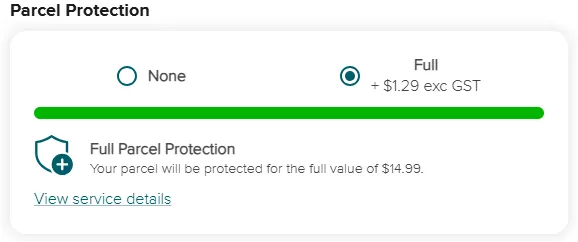
En función del valor de tu paquete, quizá te interese contratar una protección adicional que cubra el coste de tu artículo en caso de pérdida o daños.
Summary of Your Items
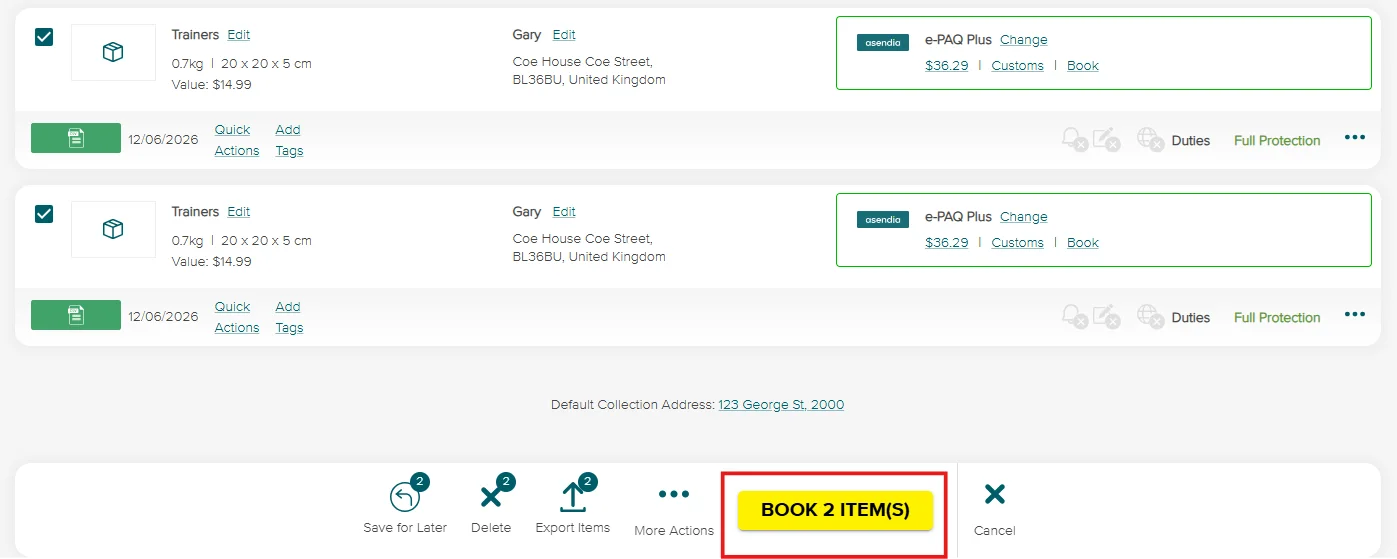
Cuando estés satisfecho con tus paquetes, haz clic en 'Reservar x artículo(s)' en la parte inferior de la página.
Making a Purchase
Aparecerá una ventana emergente con el resumen y el importe total de tu pedido. Si tienes un código promocional, puedes introducirlo aquí.
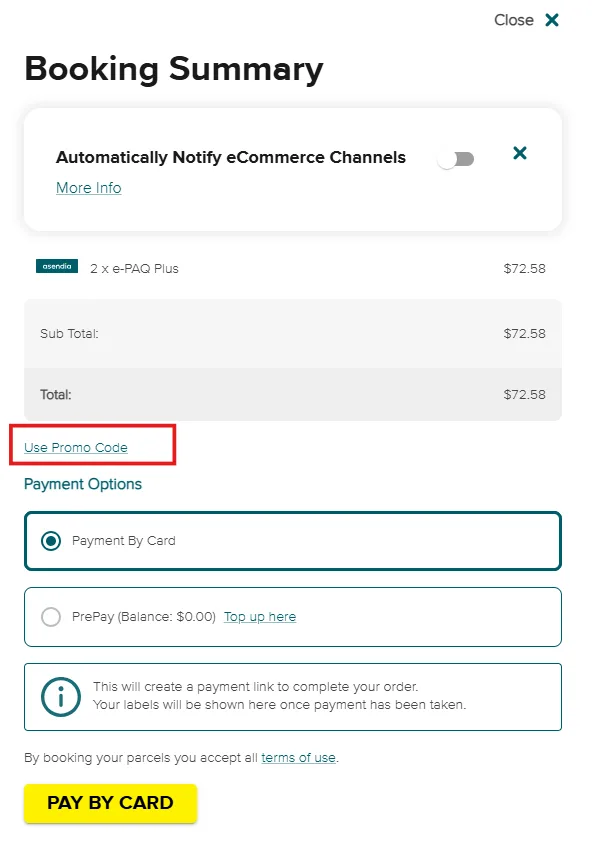
Puedes elegir entre pagar con tarjeta o mediante PrePay.
Una vez que hayas completado el proceso de pago, recibirás tus etiquetas de envío.
Using CSV or Manual Upload
Si no quieres integrar tu mercado o plataforma, puedes seguir utilizando Seller Hub.
En la sección 'Pedidos', puedes arrastrar y soltar tu archivo CSV en el cuadro correspondiente, o bien seleccionar la cruz situada en la parte superior del panel de control y hacer clic en 'Subir CSV' o 'Añadir pedido manualmente'.
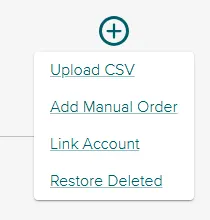
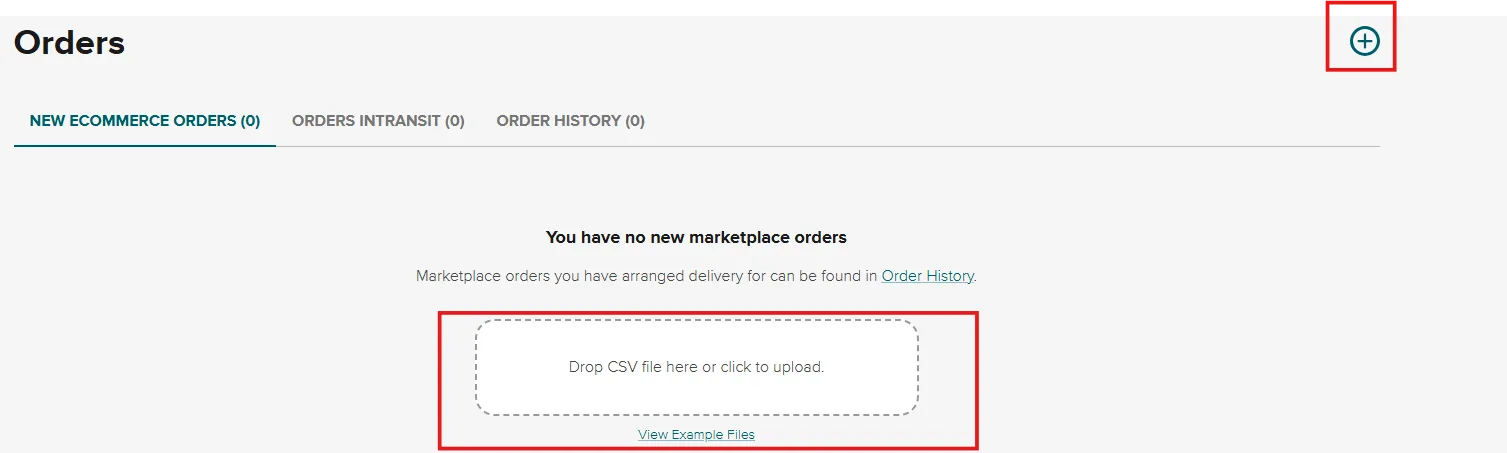
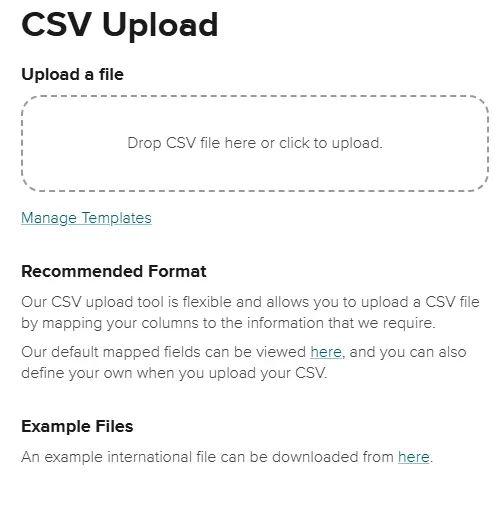
Si has seleccionado 'Subir CSV', se te indicará que subas un archivo CSV. Hay un archivo de ejemplo disponible para descargar.
Si has seleccionado 'Añadir pedido manual', se te pedirá que rellenes los datos pertinentes en una ventana emergente.