

Get Started WithSeller Hub
Seller Hub Setup Guide: From Registration to Your First Shipment
What is Seller Hub?
Seller Hub is SendNow by Asendia's free shipping management platform designed for online sellers and SMEs. It allows you to connect your sales channels, import orders automatically, manage parcels in bulk, and book international and domestic deliveries (where available) - all from one place.
For an optimised shipping experience, we encourage our customers to use Seller Hub, which helps streamline operations and improve automation and reporting.

Key Benefits
✅ Free to use - No subscription fees - you only pay for the shipping labels you book. | ✅ Multi-channel - Connect Amazon, eBay, Etsy, Temu, Shopify and WooCommerce, all from a single dashboard. |
✅ Automated order import - Orders from your linked platforms import automatically when a sale is made. | ✅ Global reach - Ship to over 150 international destinations with competitive Asendia rates. |
✅ Flexible payment - Pay by card or Prepay credit for fast, one-click booking. | ✅ Full tracking Monitor every shipment in real time from drop-off to final delivery. |
✅ CSV and manual orders - Upload a spreadsheet or enter orders manually without a marketplace integration. |
Registering on SendNow by Asendia
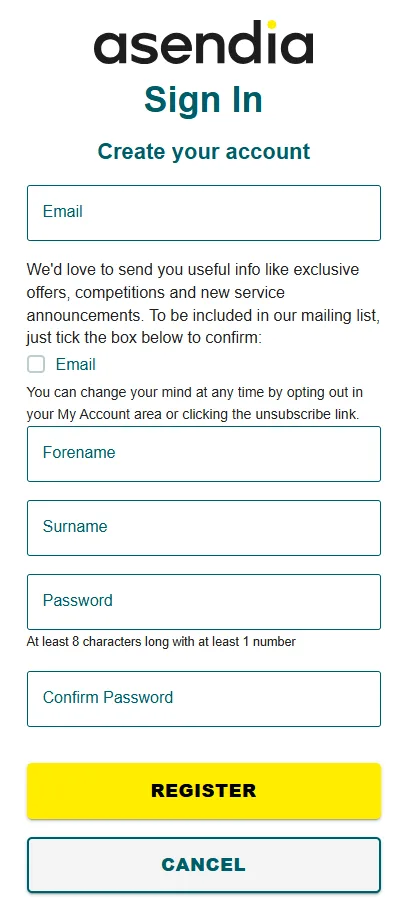
To use Seller Hub you will need to have a registered account. Click 'Sign In' at the top of the page. Once you're on the sign in page click 'Create an account', or click here to go directly to the registration page.
Linking An Account

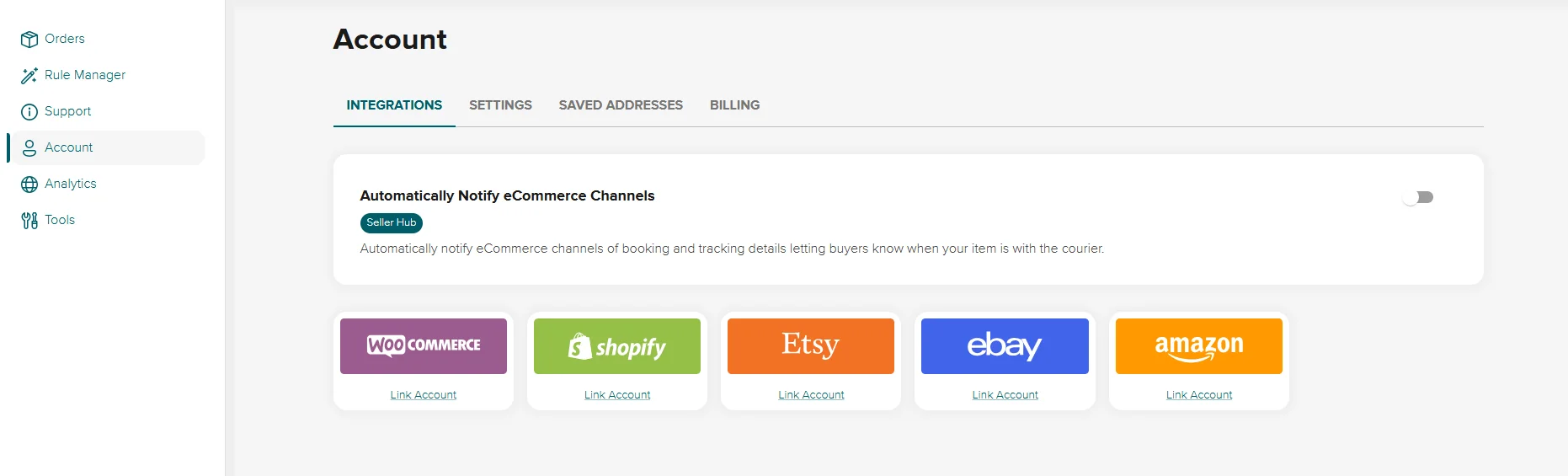
Click 'Account' on the left-hand side menu and then click 'Link Account' on the marketplace or platform you would like to integrate. Follow the detailed instructions on the next page to complete the integration.
Note: If you want to upload a CSV or add a manual order, you can skip this step.
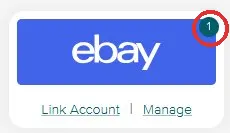
Once you have linked your marketplace account you will see a successful message at the top of the page and you'll also see this listed on your dashboard.

How Your Orders and Items Are Imported
Your orders are automatically imported from your marketplace/platform account and will appear in your Seller Hub. To view your items ensure you are logged in and then go to 'Seller Hub and click on 'Orders. Alternatively click here.
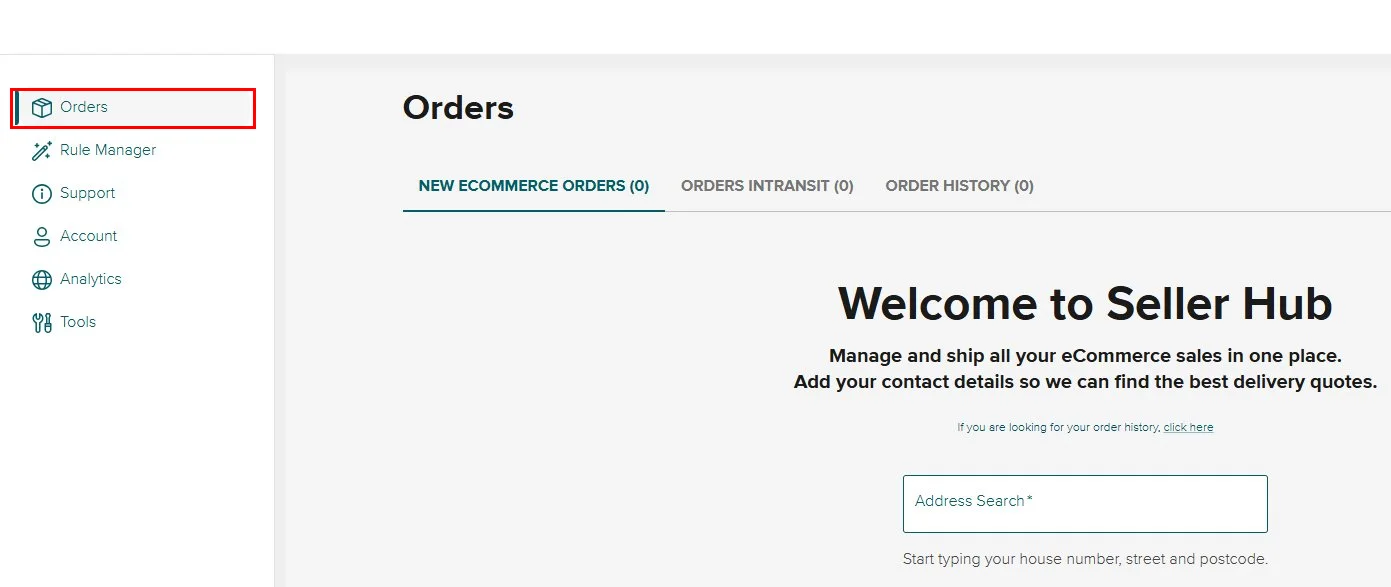
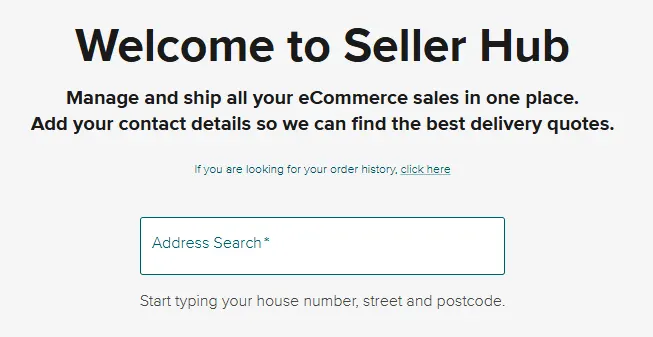
The first time your items are imported into Seller Hub, you need to add some details, such as your address (required) and telephone number (optional).
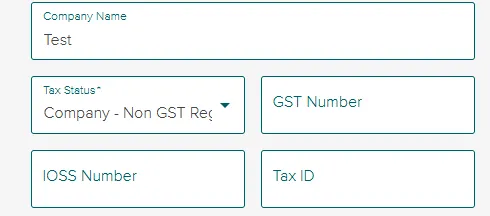
If you add a company name (optional) we will also ask for details on your Tax Status (required), GST Number (optional), IOSS number (optional) and Tax ID (optional).
How to Manage Your Items
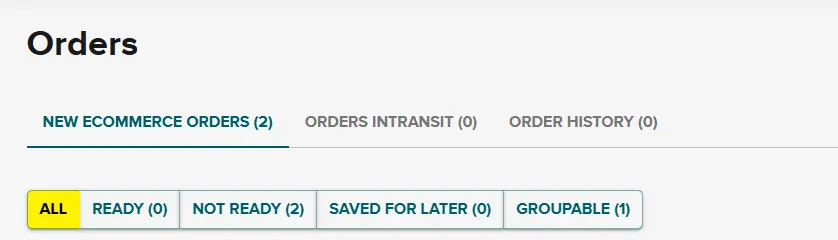
Your items and orders will be listed under the 'New Ecommerce Orders' section of your dashboard.

You can view your orders by status
All - View all items that have been imported.
Ready - View items which are ready to send - nothing needs attending to.
Not Ready - Items which have been imported that need attention - For example an address error or service needs selecting.
Saved For Later - Items which have been saved that you now want to send.
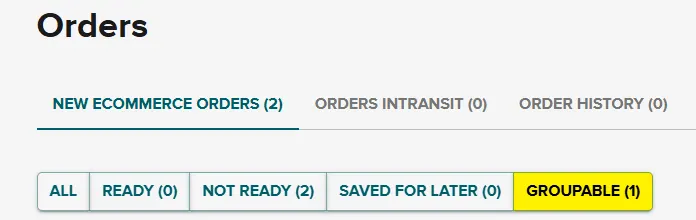
Group Orders - Items which have the same address can be sent together in one parcel.
Your orders will be imported with the parcel's contents, weight, dimensions and contents value pre-populated. It will also import the recipients contact details and delivery address.
Within the next sections, we’ll talk through how to edit the parcel’s weight and dimensions, how to choose a service and how to edit delivery addresses.
Editing the Parcel’s Weight and Dimensions
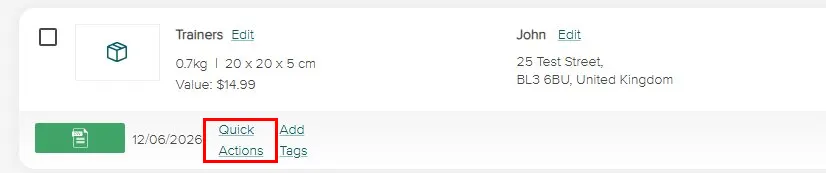
Click on the ‘Quick Actions’ link under the item details.
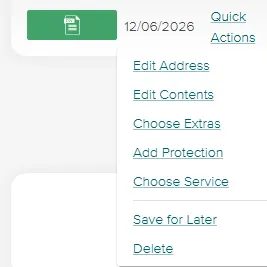
Then select 'Edit Contents'
The pop-up allows you to choose a weight from one of the preset amounts or to add your own custom weight.
You can also amend the dimensions of your parcel if required.
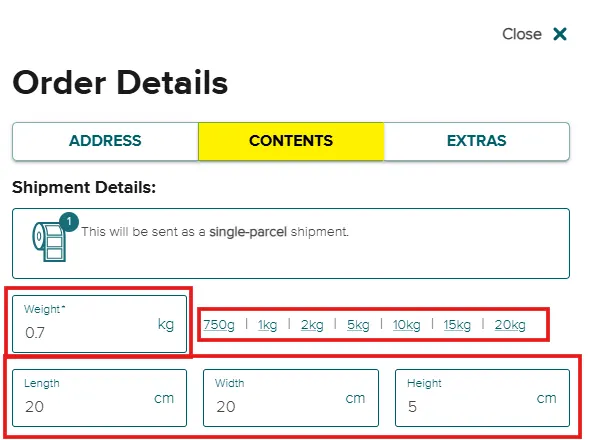
To get the most accurate quote we always recommend that our customers enter the full dimensions. Under-declaring either the weight and/or dimensions may lead to longer delivery times and/or additional surcharges.
Choosing a Service
To select a service, click the 'Choose Service' link. You will be shown a pop-up of all available services based on the specification of the details given.

Before choosing any service, you can find out more information, such as key features and restrictions by clicking on the information icons.
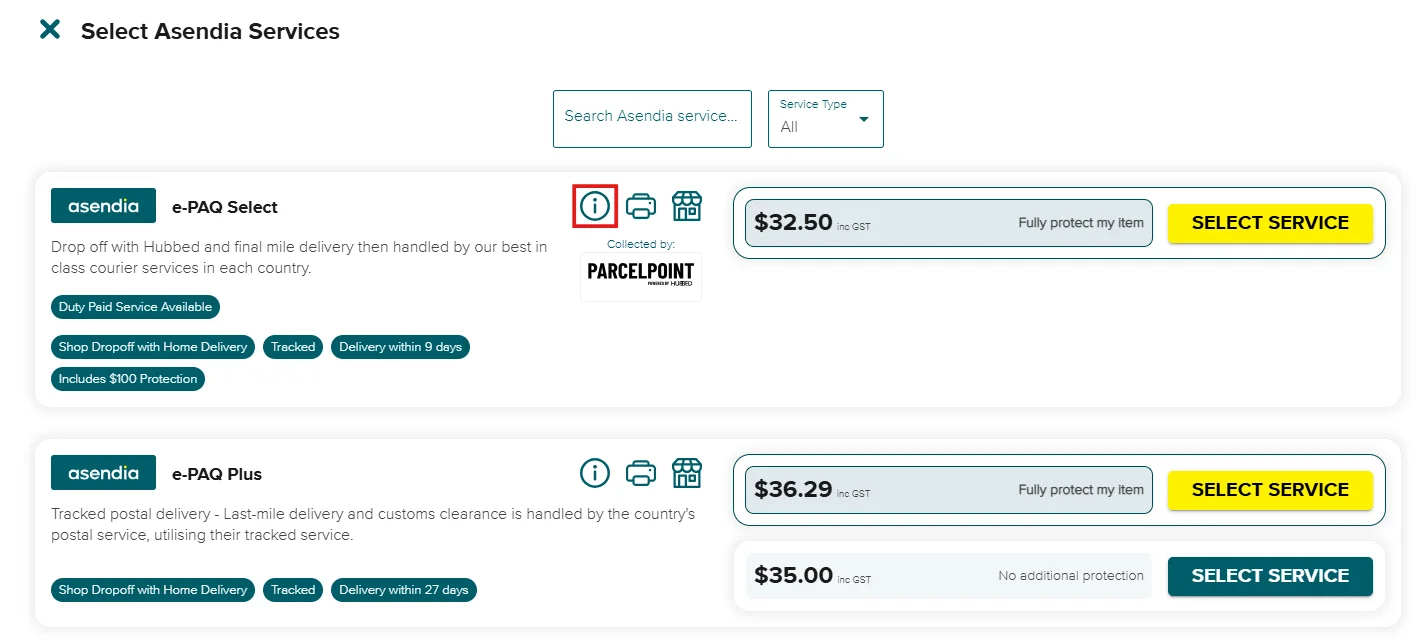
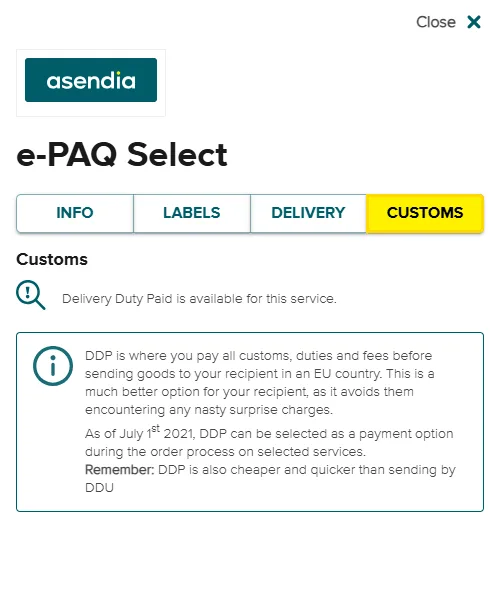
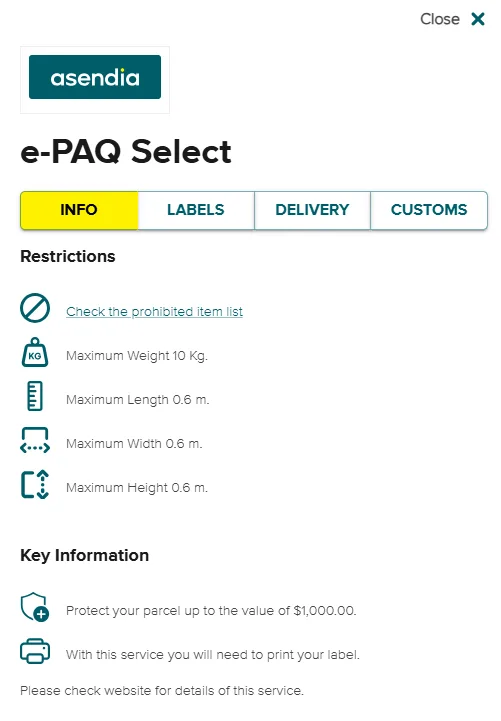
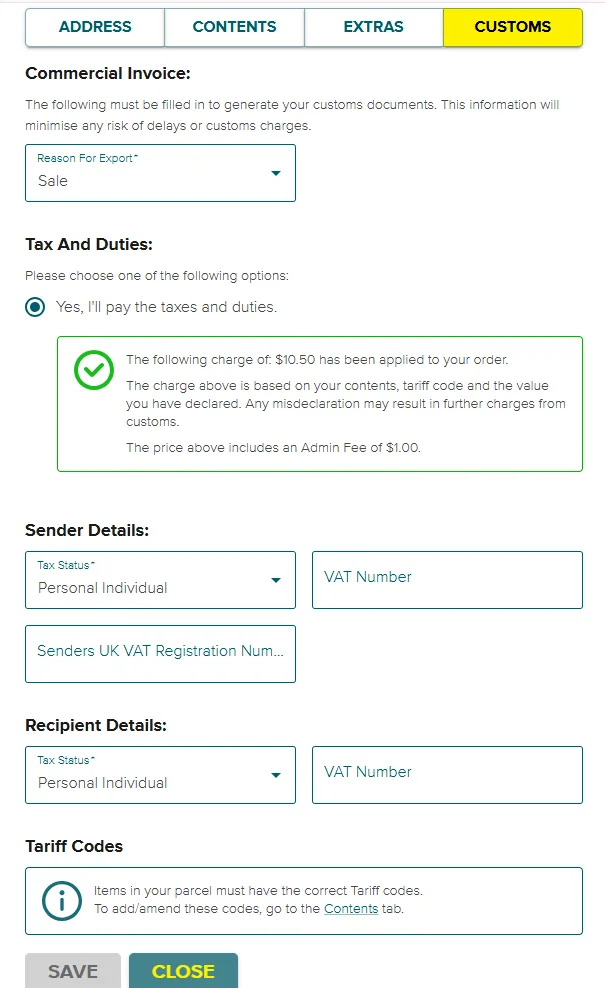
Depending on the service selected, you may be required to also 'View Duty Options' and add customs details.
Editing the Delivery Address
To edit the delivery address:
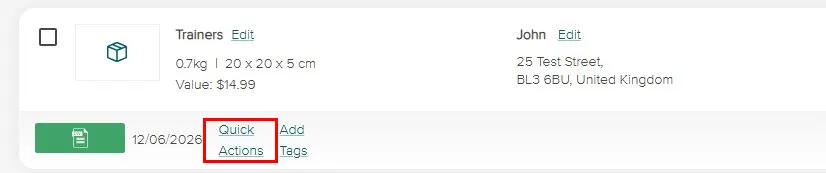
Click on the 'Quick Actions' link under the item details.
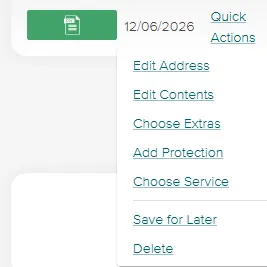
Then select 'Edit Address'
The pop-up allows you to choose amend address and contact details.
Save Items for Later and Deleting Items
To delay sending an item, click on the green tick and choose 'Save For Later'.
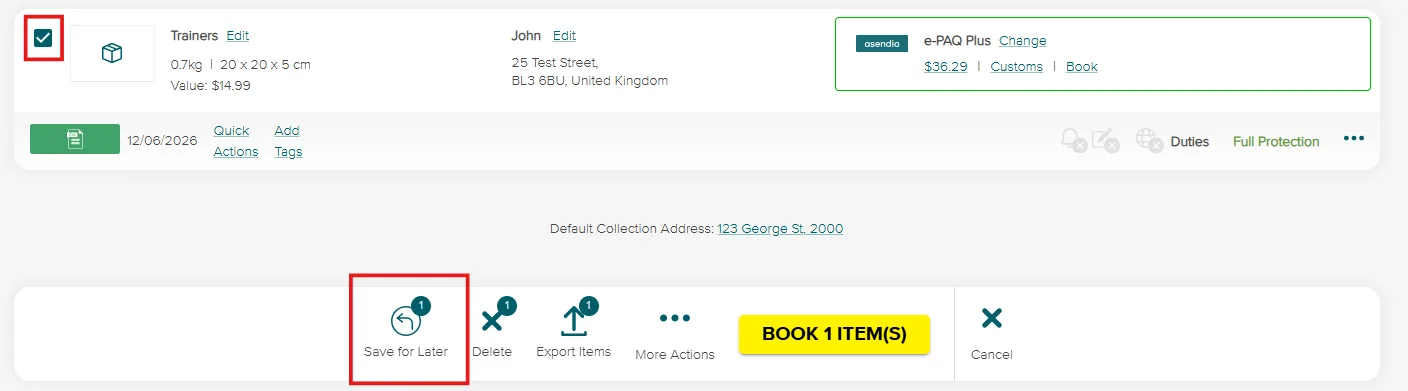
Saving this entire item for later will grey out the entire item block and will remain there until you click 'Include' or 'Include and Select'.

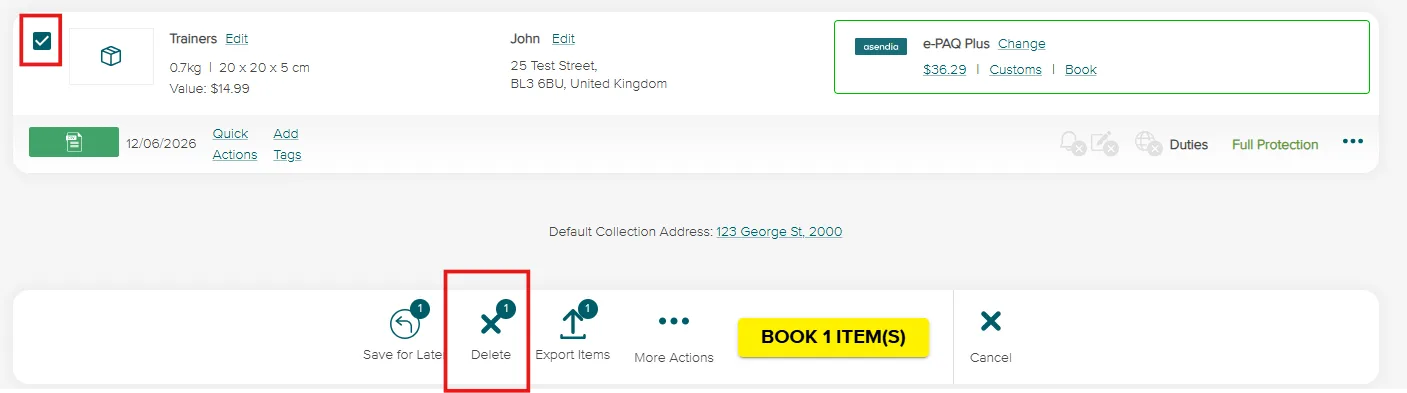
To delete an item and the order(s) click on the green tick and choose 'Delete Item'. This will delete that item and any orders assigned to it.
Grouping Items
If some of your items are being delivered to the same address, you will be able to group these into as many parcels as you wish. Simply go to the 'Groupable' tab.
Select the items you want to send in the same parcel and click 'Group x Items'.
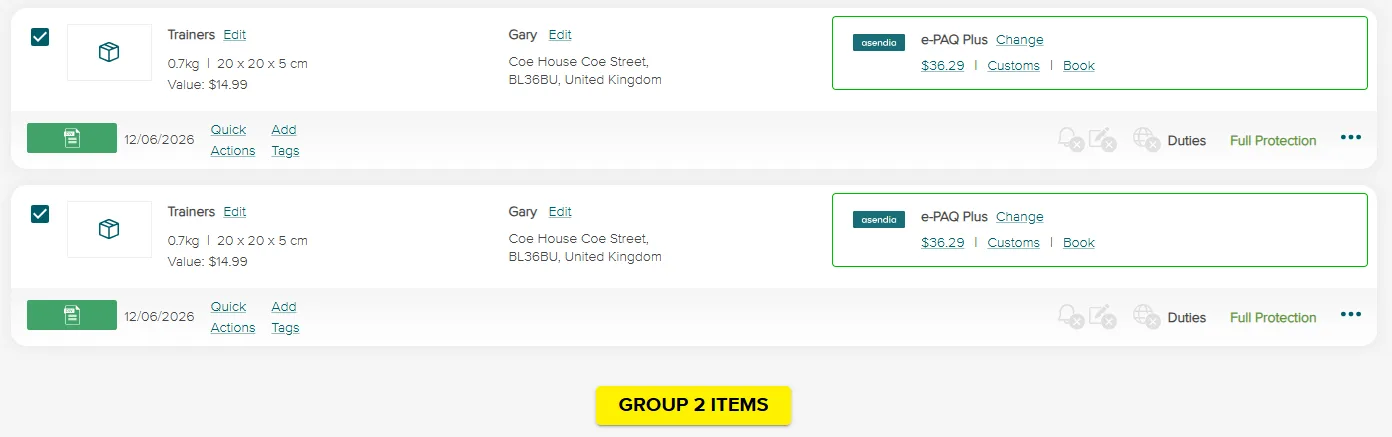
You can then adjust the weight and dimensions for the combined parcel.
Preparing Your Order
Once you've managed your items you can now start preparing to make your first order. Make sure you have chosen the right services for each of your items and that they have the relevant level of parcel protection.
Adding Parcel Protection
Depending on the value of your parcel you may want to add additional protection to cover the cost of your item in the event it is lost or damaged.
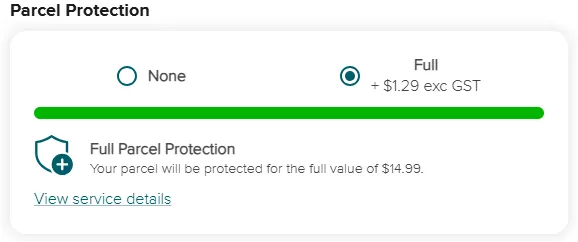
Summary of Your Items
Once you are happy with your parcels click 'Book x Item(s)' at the bottom of the page.
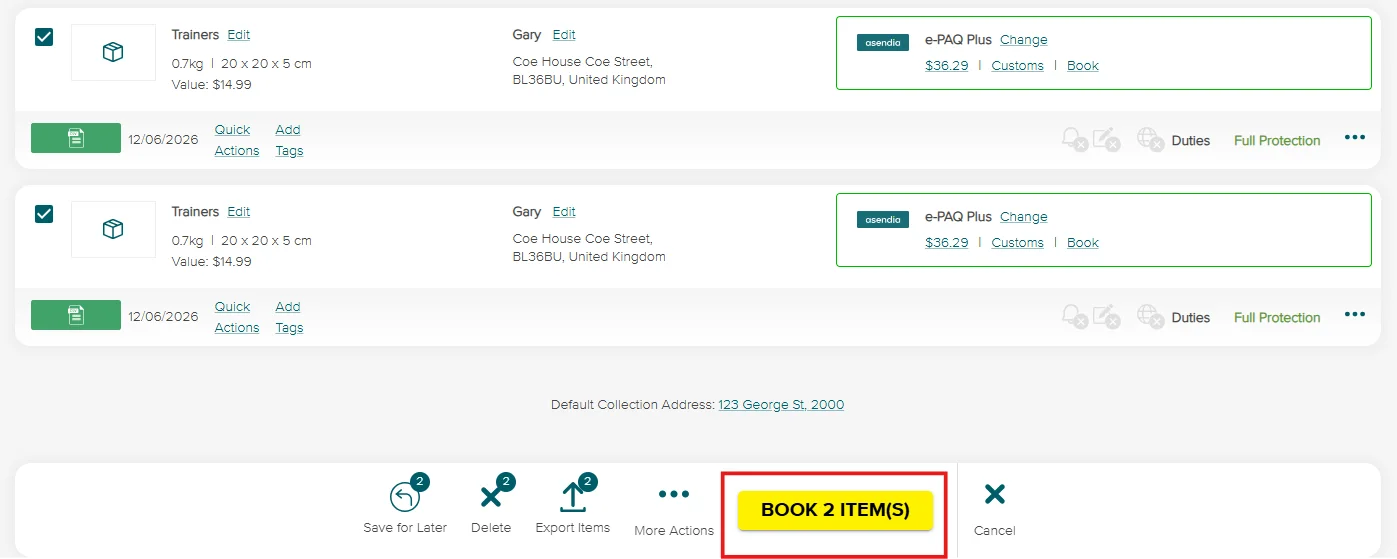
Making a Purchase
A summary pop up will appear with the total of your order. If you have a promo code, you can enter it here.
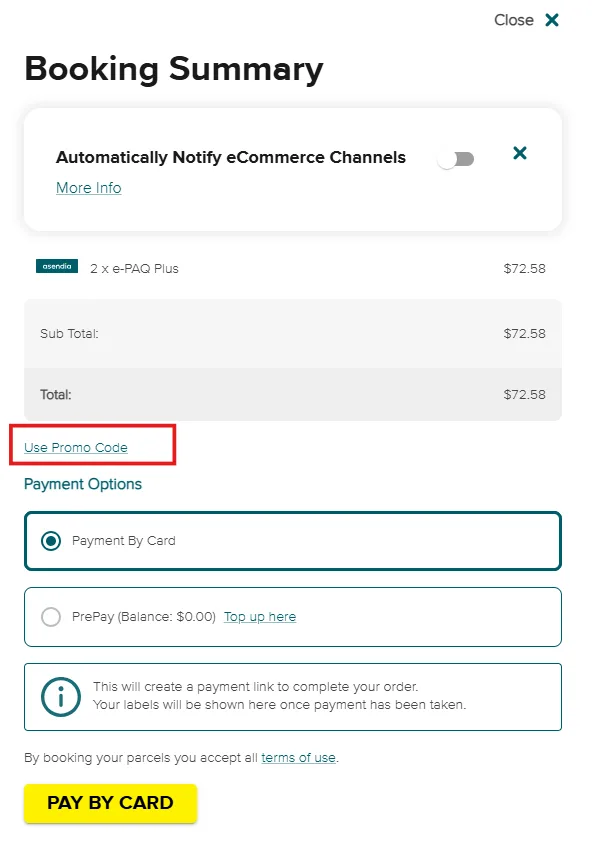
You can choose to pay by Card or PrePay.
Once you have completed the payment process you will receive your shipping labels.
Using CSV or Manual Upload
If you don't want to integrate your marketplace or platform, you can still use Seller Hub.
In the 'Orders' section you can drop your CSV into the provided box, or select the cross at the top of the dashboard and click 'Upload CSV' or 'Add Manual Order'.
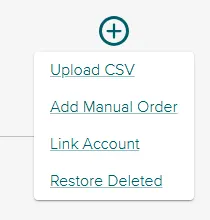
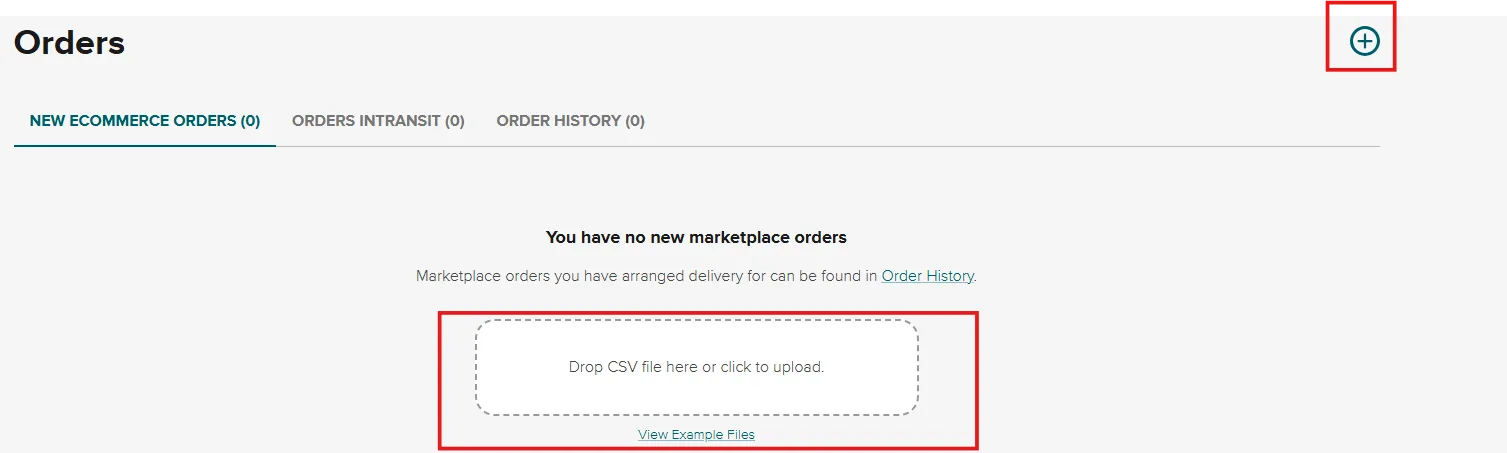
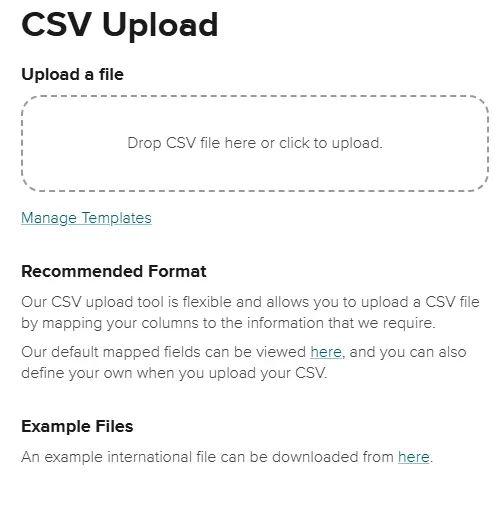
If you have selected 'Upload CSV' you will be instructed to upload a CSV file. There is an example file available for download.
If you have selected 'Add Manual Order' you will be instructed to complete the relevant details through a pop up.